Tuesday, 8 November 2016

Add new partition to SSAS cube programmatically

I'm stuck for time, so this is a brief overview and doesn't go into a lot of detail

I have built a cube for a small project to report on promotional transactions.
Stats for the machine (Dev): Windows Server 2012 (virtual), SQL 2012, 50GB RAM, 4TB hard drive and 10 cores
Currently the database has 3.5 billion-ish records in 2 tables (7 billion in total) covering 3 years of transactions. Due to the size of the data and the shape of the date hierarchy, the cube partitions will be by week. As of today there are 145 partitions - with a new one being created automatically each week.

That is a lot of partitions to manually create and there is no standard task in SSIS to help with the problem, therefore a mix of ASSP library and C# custom tasks will be employed to the the dirty work for us.
Due to the nature of this data I can't go into a fully working example, but will talk through each step.

Assumption: you have already built a cube!

The first thing to do is download the ASSP (Analysis Services Stored Procedure) library: https://asstoredprocedures.codeplex.com/
Once you have this, log into Analysis Services from SSMS, right click 'Assemblies' and add the ASSP dll.
This will allow you to run 'call assp.DiscoverXmlMetadata("Partition")' as an MDX query against the cube. it will return all the partitions with lots of useful information that we'll need later.

Step 1: Create a dataflow task to populate a table to contain you partition metadata:
In 'MDX to query partitions':
Next set the desination (SSIS can create the table automatically for you):
This table will allow SSIS to navigate which partition(s) to process.

This post assumes you have loaded new data into a fact table already and so we will focus on building a new partition from this data.

Each partition uses a naming convention that includes a date referencing the data contained within it. I.e. 'PARTITION 2016-01-01'. This will allow us to compare the partition dates to the dates in our fact table. From this we can work out what new 'weeks' need to added to the cube.

Here is the query:
select
convert(varchar(10),d.WEEK_ENDING,120) as WEEK_ENDING
from Date d
inner join Sales s
on d.DATE = s.DATE
where WEEK_ENDING > (select top 1 RIGHT(Name,10) as PartitionWeek from [dbo].[PromotionsCube_Partitions] order by PartitionWeek DESC)
GROUP BY convert(varchar(10),d.WEEK_ENDING,120)
ORDER BY WEEK_ENDING


Put the results into an SSIS object variable and loop through it:


The task within the loop is an 'Analysis Services Execute DDL Task'.


This task allows us to execute xml scripts to run on a cube. In this case we are going to create a new partition using the 'week_ending' from our loop.

Now open SSMS and connect to Analysis Services.
navigate to your cube and drill down to partitions. Right-click on a partition, Script Parition As then 'Create' you will be provided with an xml script that we can modify and utilise.

<Create xmlns="http://schemas.microsoft.com/analysisservices/2003/engine">
    <ParentObject>
        <DatabaseID>PromotionsCube</DatabaseID>
        <CubeID>Promotions</CubeID>
        <MeasureGroupID>Sales</MeasureGroupID>
    </ParentObject>
    <ObjectDefinition>
        <Partition xmlns:xsd="http://www.w3.org/2001/XMLSchema" xmlns:xsi="http://www.w3.org/2001/XMLSchema-instance" xmlns:ddl2="http://schemas.microsoft.com/analysisservices/2003/engine/2" xmlns:ddl2_2="http://schemas.microsoft.com/analysisservices/2003/engine/2/2" xmlns:ddl100_100="http://schemas.microsoft.com/analysisservices/2008/engine/100/100" xmlns:ddl200="http://schemas.microsoft.com/analysisservices/2010/engine/200" xmlns:ddl200_200="http://schemas.microsoft.com/analysisservices/2010/engine/200/200" xmlns:ddl300="http://schemas.microsoft.com/analysisservices/2011/engine/300" xmlns:ddl300_300="http://schemas.microsoft.com/analysisservices/2011/engine/300/300" xmlns:ddl400="http://schemas.microsoft.com/analysisservices/2012/engine/400" xmlns:ddl400_400="http://schemas.microsoft.com/analysisservices/2012/engine/400/400">
            <ID>Sales_2015-11-19</ID>
            <Name>2015-11-19</Name>
            <Source xsi:type="QueryBinding">
                <DataSourceID>Promotions</DataSourceID>
                <QueryDefinition>SELECT YOUR SQL QUERY THAT FORMS PARTITION WHERE WEEK_ENDING = '2015-11-19'</QueryDefinition>
            </Source>
            <StorageMode>Molap</StorageMode>
            <ProcessingMode>Regular</ProcessingMode>
            <Slice>[Date].[SALES HIERARCHY].[WEEK ENDING].&[2015-11-19T00:00:00]</Slice>
            <ProactiveCaching>
                <SilenceInterval>-PT1S</SilenceInterval>
                <Latency>-PT1S</Latency>
                <SilenceOverrideInterval>-PT1S</SilenceOverrideInterval>
                <ForceRebuildInterval>-PT1S</ForceRebuildInterval>
                <Source xsi:type="ProactiveCachingInheritedBinding" />
            </ProactiveCaching>
            <EstimatedRows>10782922</EstimatedRows>
            <AggregationDesignID>AggregationDesign</AggregationDesignID>
        </Partition>
    </ObjectDefinition>
</Create>


Anywhere that references '2015-11-19' will be replaced by our 'week_ending' variable from the loop. This now creates our new partitions, using the standard aggregation design. I might cover that in another post.

Now we re-run our ASSP query to look for any Unprocessed partitions and use C# custom task to process these:

public void Main()
  {
            bool fireAgain = true;

            Microsoft.AnalysisServices.Server objServer = new Microsoft.AnalysisServices.Server();
            Microsoft.AnalysisServices.Database objDatabase = new Microsoft.AnalysisServices.Database();
            Microsoft.AnalysisServices.Cube objCube = new Microsoft.AnalysisServices.Cube();
            Microsoft.AnalysisServices.MeasureGroup objMeasureGroup = new Microsoft.AnalysisServices.MeasureGroup();
            Microsoft.AnalysisServices.Partition objPartition = new Microsoft.AnalysisServices.Partition();


            objServer.Connect("SERVER");
            objDatabase = objServer.Databases["Cube"];
            objCube = objDatabase.Cubes["Promotion"];
            objMeasureGroup = objCube.MeasureGroups["Sales"];
            objPartition = objMeasureGroup.Partitions["Sales_" + Dts.Variables["WEEK_ENDING"].Value.ToString()];


            byte[] emptyBytes = new byte[0];
            Dts.Log("Partition: " + "Sales_" + Dts.Variables["WEEK_ENDING"].Value.ToString() + " process starting", 0, emptyBytes);

            Dts.Events.FireInformation(0, "Sales_" + Dts.Variables["WEEK_ENDING"].Value.ToString(), "process starting.", String.Empty, 0, ref fireAgain);

            objPartition.Process(Microsoft.AnalysisServices.ProcessType.ProcessFull);

            Dts.Log("Partition: " + "Sales_" + Dts.Variables["WEEK_ENDING"].Value.ToString() + " process completed", 0, emptyBytes);

            Dts.Events.FireInformation(0, "Sales_" + Dts.Variables["WEEK_ENDING"].Value.ToString(), "process completed.", String.Empty, 0, ref fireAgain);


   Dts.TaskResult = (int)ScriptResults.Success;
  }


Next process the Measure Group and Cube set as 'Default' processing.

Job done. This post took 10 mins to put together, so if someone is stuck I'll happily send more information. I might even update it with more details.

Friday, 3 October 2014

Spotfire Text Area - Dynamic HTML content with DropDownListColumn

Been using Spotfire a lot and wanted to share interesting bits. I needed a table that allowed a user to change a value in a row and save this back to the database. This required a DropDownListColumn, which currently doens't exist in Spotire - so I wrote one. On a button click event, I used IronPython to generate dynamic JQuery and HTML elements to build the functionality/ The data table concerned is looped through in Python and the relevant HTML tags are concatenated into a large string. The column concerned with the DropDownList just has one declared. When the value in the dropdownlist is changed, a JQuery event is fired that saves it back to a hidden textbox, along with the primary key field, separated by a colon. Once the save button is clicked a JQuery event is raised that loops through the textboxes and save the data into a comma separated array. This array is converted to a String and placed inside a Spotfire Document Control property. Using JQuery commands of Focus and Blur imitates the user going into the textbox, triggering Spotfire to change the Document Property to the value in the Property Control element. We can then use a Python script event attached to the Document Property to decode the Array and save the data back to the database. Pretty long winded, but it so far it seems to work really well. The code below is the Python that generates the HTML and JQuery
#Variables:

#dataTable (Table containing rows to loop through - this is the source that I wish to add a dropdownlist column to)

#page - page which contains the TextArea

#visTA - text area we are going to drop the HTML into


dataTable.Refresh()

#get list of filtered rows
rows = Document.ActiveFilteringSelectionReference.GetSelection(dataTable).AsIndexSet()

#generate Javascript function
html = " \n"


#generate html table
#generate html head
html += " \n"
html += " \n"
html += "  \n"
html += " "

#generate html header
for column in dataTable.Columns:
	html += ""
html += " \n"
html += "\n"

counter = 1
achievedOrig = 0
childPlanner = ""
#generate html rows
html += " \n"
for r in rows:
	html += " "
	for column in dataTable.Columns:
		if column.Name == "FutureMod":	
			achievedOrig = column.RowValues.GetFormattedValue(r)
		if column.Name == "ChildPlanner":
			childPlanner = column.RowValues.GetFormattedValue(r)
		html += ""
	html += " "
	html += ""
	html += " \n"

	counter  = counter + 1
#finish html
html += " \n"
html += " 
" + column.Name + "Achieved
" + column.RowValues.GetFormattedValue(r) + "\n" html += "
\n" #show results from Spotfire.Dxp.Application.Visuals import TablePlot, HtmlTextArea ta = visTA.As[HtmlTextArea]() originalHtml = ta.HtmlContent endOriginal = originalHtml.find("") endOriginal = endOriginal + 10 ta.HtmlContent = originalHtml[0:endOriginal] + html print html Document.ActivePageReference = page


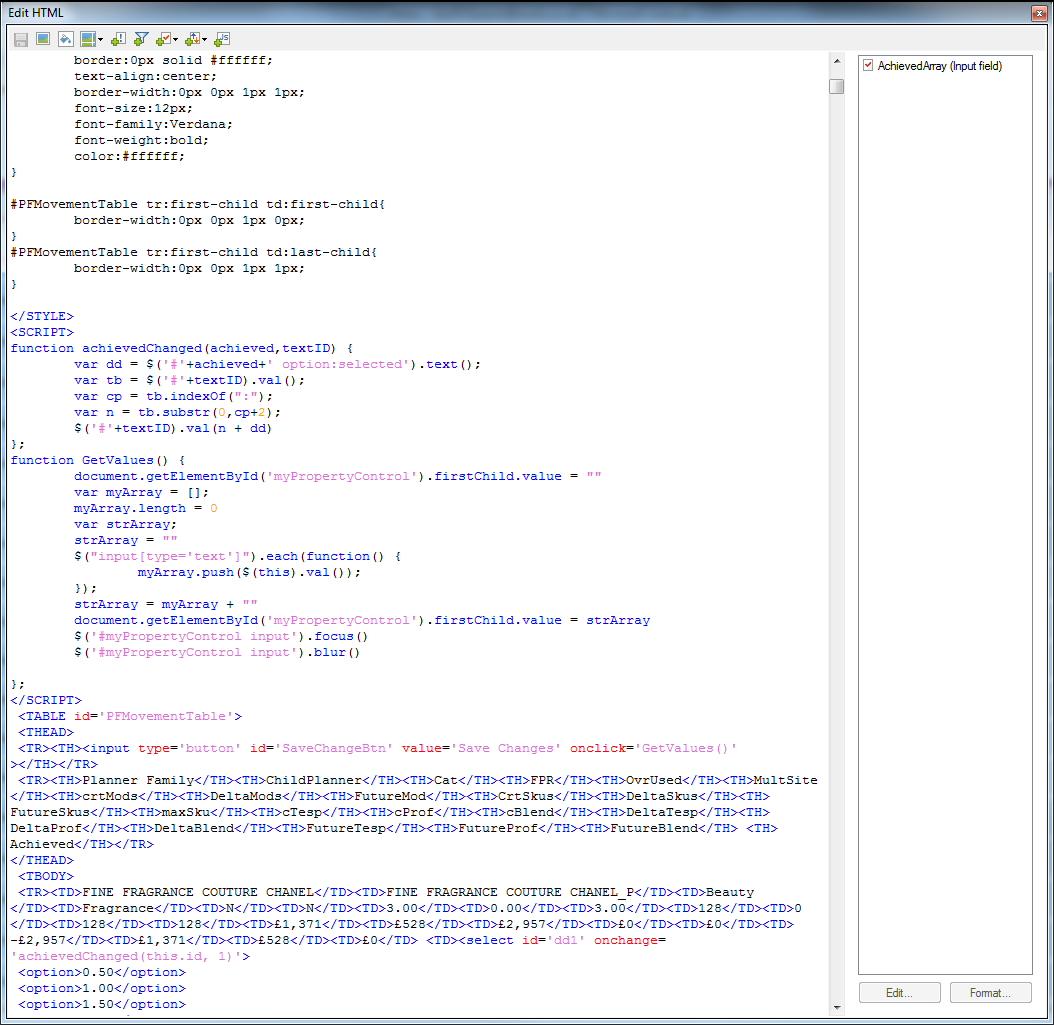
This is a snippet of the HTML generated above. Everything from the "/STYLE" tag up isn't generated dynamically, the dynamic HTML is appended after this, as you can see in the code above.

Friday, 7 June 2013

Queue up BackgroundWorkers OR wait for BackgroundWorker to finish without blocking the UI

This is a new one, so thought I'd put it here.
I have a procedure that uses a BackgroundWorker and updates a log window in my main form. Simple stuff.
I use this procedure for more than one task, incorporating more than one procedure. In the case I solved here, I had to wait for one BackgroundWorker to complete before moving on with the code in the Main Thread. I couldn't trigger it in the RunWorkerComplete event, as the BackgroundWorker was used multiple times throughout the application.
So here it is: (I used ThreadPool and Invoked the actions!)
private void Button1_Click(object sender, EventArgs e)
        {
            ThreadPool.QueueUserWorkItem(delegate
            {
                Invoke(new Action(delegate { ProcedureWithBackgroundWorker(); }));

                while (BW.IsBusy)
                {
                    Thread.Sleep(100);
                }

                Invoke(new Action(delegate { SecondProcedureThatWaitsForTheOneAboveToFinish(); }));
            });
        }

Friday, 24 May 2013

Pivoting data in SQL and SSIS Dynamically

There is a pviot function in SSIS and a pivot query in SQL - both of which I find laborious, ESPECIALLY the one in SSIS!
Here is a dynamic SQL query that will fix the problem:

DECLARE @columns NVARCHAR(2000)
SELECT  @columns = COALESCE(@columns + ',[' + [Column2] + ']', '[' + [Column2] + ']')
FROM    TableName
ORDER BY [Column2]

--print @columns
DECLARE @SqlQuery nvarchar(4000)
set @SqlQuery = 'select [Column1],' + @cols + ' into dbo.NewTable from (select [Column1],[Column2], [Column3] from TableName) p 
   PIVOT (MAX([Column3]) FOR [Column2] in (' + @columns + ') ) AS pvt order by [Column1]'

--print @SqlQuery
execute (@SqlQuery)


I recommend adding this as an 'Execute SQL Task' in your Control Flow - even if it means using a Staging Table. Will Allow for a change in columns and everything!


One more thing! Notice the 'into dbo.NewTable'. You'll need to drop that table before performing this task. This will allow for a change to the dynamic columns. Dynamic column queries such as this are great even if the columns are fixed.
I've just done one where there were 50 columns after the pivot and I don't have time to be defining and writing all that extra code! It is espcially irritating in SQL (before SQL Server 2012 - which I understand takes care of tasks such as this much better!).
Good luck.

Tuesday, 7 May 2013

Create and export Excel in C# Winform application

So I used to do this with something along the lines of:
using System;
using System.Windows.Forms;
using Excel = Microsoft.Office.Interop.Excel;

namespace WindowsApplication1
{
 public partial class Form1 : Form
 { 
    public Form1()
  {
   InitializeComponent();
  }
 private void button1_Click(object sender, EventArgs e)
 {
  Excel.Application excel = new Excel.Application();
  Excel.Workbook wb = new Excel.Workbook();
  excel.Workbook.Add(wb);

etc...etc...etc..


Then I would loop through, adding data to a worksheet. This was very memory intensive and very SLOW....
This is how I do it now.

I create an Excel file using Excel - I add and name worksheets, I format columns etc and get it to 'look' how I want it to.

I then add this to the application in a folder called 'Excel Templates'. You can then change the deployment properties to export and create this file on installation.

The idea is that the application will copy, rename and save this file. It then creates an OLEDB connection and adds rows using an update command (I use update because it keeps the cell formatting and doesn't append after 'blank rows').

This is a basic class for copying and populating the Excel template. The 'FileName' parameter is what and where you want to save the file as.
using System;
using System.Collections.Generic;
using System.Linq;
using System.Text;
using System.Data;
using System.Data.SqlClient;
using System.IO;

namespace SpaceApp_v0._1.Classes
{
    class ExcelClassExample
    {
        static DataSet ds_Excel;

        public void CreateViewer(string FileName)
        {
            string myPath = System.Windows.Forms.Application.StartupPath + @"\Excel Templates\ExcelTemplate.xls";

            File.Copy(myPath, FileName, true);

            Populate_Excel(FileName);
        }

        private void Populate_Excel(string FileName)
        {
            SqlConnection conn = new SqlConnection(ConnectionsClass.Server);

            string sqlQuery = "select FieldNames from TableName Where parameters = 'Value'";

            SqlCommand cmd = new SqlCommand(sqlQuery, conn);

            ds_Excel = new DataSet();

            SqlDataAdapter da = new SqlDataAdapter(cmd);

            conn.Open();

            da.Fill(ds_Excel, "TableName");

            conn.Close();

            string DSN = string.Format("Provider=Microsoft.Jet.OLEDB.4.0;Data Source={0};Extended Properties=\"Excel 8.0;HDR=No;IMEX=2\"", FileName);
            using (System.Data.OleDb.OleDbConnection Con = new System.Data.OleDb.OleDbConnection(DSN))
            {

                Con.Open();

                using (System.Data.OleDb.OleDbCommand Com = new System.Data.OleDb.OleDbCommand())
                {
                    int Row = 1;
                    foreach (DataRow row in ds_Excel.Tables["TableName"].Rows)
                    {
                        Com.Connection = Con;
                        Com.CommandText = string.Format("UPDATE [Sheet1$A" + Row + ":Z" + Row + "] SET F1 = '{0}'", row["Column1"]);

                        Com.ExecuteNonQuery();
                        Row++;
                    }
                }
                Con.Close();
            }
        }

    }
}

You can call this class from your main app using a button click event. I have used this is a background worker, creating 2,500 Excel 'templates' in a short period of time, with progress bar etc.

Tuesday, 26 February 2013

Connect to SSAS outside of a domain!!

I was finally given to a test server to try out my new-fangled Data Cube expertise. Trouble is the company is quite paranoid about security and things going wrong, so it isn't part of the domain. This means I cannot connect to Analysis Services as AS will only allow Windows Authentication.

Never fear - where there's a will there's a way!

I created an application pool using IIS, and connect to that instead!

Here's how to do it!

Go to: C:\Program Files\Microsoft SQL Server\MSSQL.1\OLAP\bin\isapi\ and copy the contents of this folder to: C:\Inetpub\wwwwroot\olap\. You'll need to create the 'olap' folder.

Right-click on 'My Computer' and click on 'Manage'. Click on 'Services and Applications' then 'Internet Information Services' (if you don't have IIS installed you can probably do this from 'Control Panel' - I'm not going to explain it here, just GOOGLE IT!!).

Right-click on 'Application Pools' then 'New' then 'Application Pool...' Set 'Application Pool ID' to 'olap' (can you see where this is going yet?). Ensure 'Use default settings for new application pool' is checked.

Now, open 'Web Sites' folder under 'Application Pools' folder, right-click on 'Default Web Site' and click 'new' then 'Virtual Directory'. Name it as 'OLAP' and point it to the folder you created earlier 'C:\Inetpub\wwwwroot\olap'. In 'Access Permissions' select 'Run scripts (such as ASP)' ONLY.

Right-click on your new 'OLAP' website and click on 'Properties'
Set 'Application pool:' to 'olap'

Click on 'Configuration', then 'Add...'

In the 'Executable' box browse to your virtual directory.

Type '.dll' into the 'Extension' box.

Click 'OK'


In OLAP Properties, click on the 'Directory Security' tab and under 'Authentication and access control' click on 'Edit'.
Enable annonymous access

Enable 'Integrated Windows Authentication' and 'Basic Authentication (password is sent in clear text)'

FINAL SECTION!

Back in 'Computer Management' open 'Services and Applications' then 'Internet Information Services' then right-click on 'Web Service Extension' and 'Add a new Web Service Extension'.

Set 'Extension Name' to 'olap' and add the 'msmdpump.dll' to 'Required files' by browsing to your virtual directory'. Check 'Set extension status to Allowed' and click 'OK'.

That oughta' do it! Now when you connect to SSAS via Management Studio type in 'http://servername/olap/msmdpump.dll' and BINGO! you're iin.
I may add pictures but I'm busy today, besides it's better to struggle and understand than follow blindly and not understand.

Thursday, 7 February 2013

Embed Console Window in Winform Application

This has been bugging me for a while now.

I use TelNet to pass commands to a Unix box.  I wanted to embed the TelNet interface into a Winform application.

I concentrated on embedding a console app within the winform app. WRONG.

I used TelNet libraries and messed around looking to use RichTextBoxes. WRONG.
Well. Probably not that wrong, they mostly worked but weren't very good.

Here is what I have done:

Process TelNet = new Process();

TelNet.StartInfo.FileName = "TelNet.exe";

TelNet.Start();

If you need any more clarification please leave.

This prevents cross-thrreading issues, launching new applications and all sorts of problems.

It works for me.  I know it's simple.  It's all I require.

Wednesday, 9 January 2013

Simplified Modulo in SSIS

OK, last modulo post was rather meandering and overly complex for most people to use. I wrote it mostly for my reference in the future to jog my memory and didn't have the time to go into great detail on how to implement that solution.

Next time I design a large Slowly Changing Dimension I may post it up step by step in greater detail.

With that in mind I thought I'd post a simpler to understand and implement example.

The Algorithm works as follows:

instead of this -
select * from MyLargeTable


Use this query -
select * from MyLargeTable
where (ID %3) = 0
OPTION (MAXDOP 1)


The '3' after the percentage sign dictates how many sections to split the table into and the '= 0' dictates which selection we are selecting. It is a zero-based index.

A simple implementation in SSIS looks like this:


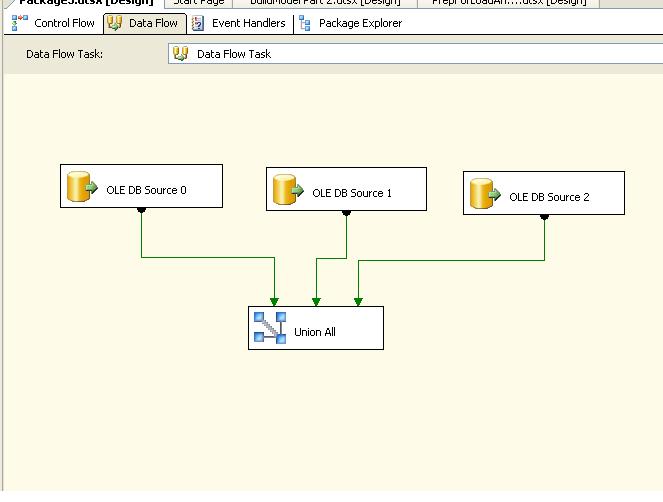
Each OLE DB Source contains the same SQL query as before, but each one uses a different part of the zero-based index (the clue is in the name of the OLE DB Source!).

So there we are - a really simple solution I quarantee will GREATLY improve the speed of large SQL imports, and will also improve the performance of a large dimension when implemented in a bit more context than I had time to write.

N.B. The 'OPTION (MAXDOP 1)' part does something with the processes I can't remember, but I think it's related to running asynchronously and improves performance. Look it up.

Thursday, 3 January 2013

Large Tables/Dimensions and the Modulo Algorithm in SSIS

While working in a limited memory environment I needed to be frugal with the amount of RAM a package would take up. To this end, I had a Slowly Changing Dimension that contained about a million records, which when running on a 32 machine would crash and run out of memory part-way through.

This also applied to large transformations, where although I didn't run out of memory, going to capacity greatly slowed the process down.

What I found to ease these troubles is the Modulo Algorithm. By using this to split the data, or in the case of the dimension to process smaller chunks, is that performance and in fact the ability to complete the processing at all was greatly improved!

Here's an example of how to implement it in a simple enough Slowly Changing Dimension:

Let's start with the data. A large dimension of changing size (new records can be added at anytime - especially with a customer, client or address dimension). Limited RAM (2GB per transaction) with an optimal and easily controlled 10,000 records processed with each iteration.

I will use a For Loop Container to loop through each iteration. To work out the number of iterations I will divide the number of records in the dimension by 10,000 and round this UP to the nearest integer.

We want to create a table in our database that will hold each iteration of records - I make this table on the fly each time, so I can use it for multiple packages and tables.

Drag an Execute SQL Task onto the DataFlow and set the ResultSet to 'None'. Set the SQL to the following:

If (EXISTS (SELECT * FROM INFORMATION_SCHEMA.TABLES
   WHERE TABLE_SCHEMA = 'dbo'
   AND TABLE_NAME = 'Modulo_Temp'))
BEGIN

DROP TABLE dbo.Modulo_Temp

END

ELSE

BEGIN

CREATE TABLE dbo.Modulo_Temp
(Field1 int,Field2 varchar(100))

END


The CREATE TABLE part of the query needs to match the structure of the relational table used to match to the existing dimension.

Create two variables called 'Iterations' and 'CurrentIteration' as below:


Drop a script task in to your Control Flow, add in the below SQL Statement, set the ResultSet to SingleRow and map the ResultSet to variable 'Iterations'.

select (count(ID) / 10000) + 1
from dbo.TableName


Next drop a For Loop Container into the Control Flow and set it up as below:


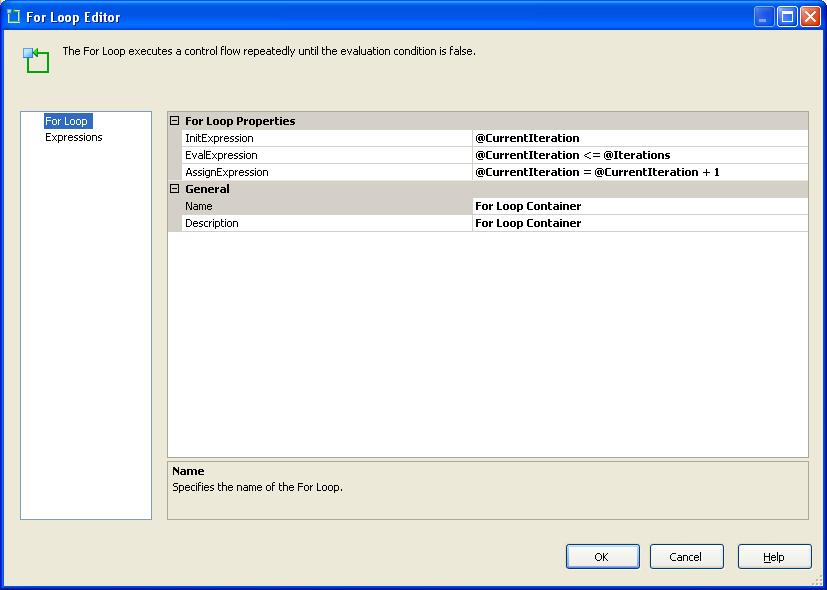
Here's a close up of the configuration:

Not the best picture quality so:
InitExpression : @CurrentIteration

EvalExpression : @CurrentIteration <= @Iterations

AssignExpression : @CurrentIteration = @CurrentIteration + 1


Next add an Execute SQL Task into the Loop and set the SQL to:

TRUNCATE TABLE dbo.Modulo_Temp


Now here's the fun part! We will now use the Modulo Algorithm to split the source table into chunks of 10k records. We will treat each 10k chunk as it's own dimension.

You can use the Slowly Changing Dimension task provided with Integration Services, but I prefer the Kimball method one available on CodePlex. It allows a lot more customisation, is faster and works well with this task as you can set your own dimension source using SQL, rather than just pointing to a table in the database. This facet is key as we need to restrict the dimension records to the ones contained within our 10k chunks of each iteration.

Drag a DataFlow component into the ForLoop.


In the DataFlow add an OLE DB Source. Add a variable called 'SourceSQL' with a data type of string. In the properties set 'Evaluate as Expression' to TRUE. In the expression write your select statement for your source table, but add in the Modulo part as below:

"SELECT
Field1,
Field2...
FROM dbo.SourceTable
WHERE (pID % " + (DT_WSTR,10)@[User::Iterations]  + ") =  " + (DT_WSTR,10)@[User::CurrentIteration]  + "
ORDER BY ID
OPTION(MAXDOP 1)"


Next we need to set our Existing Dimension source. Simply modify the code the below to meet your requirements.
/

select
Field1,
Field2...
from dbo.ExistingDimension
where YourBusinessKey in (select ID from dbo.Modulo_Temp)


This code will restict the records in the dimension to only those 10k you pulled through from the source code. Attach your Slowly Changing Dimension task to these two inputs as you normally would and BINGO!!

N.B. Do not use the Delete/Missing outputs from the Slowly Changing Dimension tasks as this will not work. I'll leave you to work out why!
/


Round up of Modulo:
Add (IDField % 5) to split table into 5 chunks. On to this add what part of the table you want like so: (IDField % 5) = 0. It uses zero based index for the chunks.

I have also seen this technique used to greatly improve the speed of large imports from SQL. Create 3 OLE DB Sources in one DataFlow, each one taking a third of the table to be imported and union them together. Much faster than one source.

I know this post is quite brief, and skips a few things, but it meant for basic guidance rather than instructions. Always experiement and play around.

Wednesday, 2 January 2013

Hanging SSIS Packages

Been having some problems with Integration packages hanging, so thought I'd share some common bloopers to avoid in your development.

NEVER use the same table as OLE DB Source AND Destination in the same DataFlow.  When the package tries to write out to the table, it will be locked by the package trying to extract records. Seems simple enough, but I have fallen for it in the past!

NEVER do the same as above using Raw Files.  Similar reasons.  In fact don't do it for any connection/desintation. 

I never recieved a single error message, just hanging packages and a lot of frustration once I realised what I was doing.

Integration Services will also be affected by general locks on the SQL Server, so be careful how you manage access to the tables and locking in general.  For example, don't try and add to a Fact Table while a cube is processing - sounds simple unless you have a lot of schedules and haven't kept track of your timings (Only happened to me in testing BTW!).
Things to look out for:

Memory usage - large sorts can use up all available memory and stall a package.

CPU usage - can cause bottle-necks in large packages.

Bottle-necks in general - can slow a package down so much it looks 'hung'; check engine threads, Default BufferMaxRow and DefaultBufferSize for large DataFlows.  Consider using BufferTempStoragePath, which can help free-up memory.  I have used this quite successfully while processing large dimensions.  Also consider splitting the DataFlow into chunks.

I'll do a post on this in the next couple of days:-  using the Modulo Algorithm to split a dimension, so when the Slowly Changing Dimension is running, we are only using a section of the dimension at a time.

Currently I am working on a mystery hanging package.

Task 1 (DataFlow): Imports 10 million records to a table.

Task 2 (Execute Package Task): Runs a small package containing a Slowly Changing Dimension.

Task 3 (Raw File Sourced DataFlow): Transforms some data.

Always hangs on Task 3.

Moved Task 2 to Task 6; improves performance by changing the task that hangs to task 15.

Still working on this one...

Friday, 14 December 2012

Dynamic CREATE TABLE scripts

Not taking credit for this, but I really like the code and have not come across this sort of thing before.... Basically, if you want to generate CREATE TABLE scripts for multiple tables, or just on-the-fly this will save you....
select  'create table [' + so.name + '] (' + o.list + ')' + CASE WHEN tc.Constraint_Name IS NULL THEN '' ELSE 'ALTER TABLE ' + so.Name + ' ADD CONSTRAINT ' + tc.Constraint_Name  + ' PRIMARY KEY ' + ' (' + LEFT(j.List, Len(j.List)-1) + ')' END
from    sysobjects so
cross apply
    (SELECT 
        '  ['+column_name+'] ' + 
        data_type + case data_type
            when 'sql_variant' then ''
            when 'text' then ''
            when 'decimal' then '(' + cast(numeric_precision as varchar) + ', ' + cast(numeric_scale as varchar) + ')'
            else coalesce('('+case when character_maximum_length = -1 then 'MAX' else cast(character_maximum_length as varchar) end +')','') end + ' ' +
        case when exists ( 
        select id from syscolumns
        where object_name(id)=so.name
        and name=column_name
        and columnproperty(id,name,'IsIdentity') = 1 
        ) then
        'IDENTITY(' + 
        cast(ident_seed(so.name) as varchar) + ',' + 
        cast(ident_incr(so.name) as varchar) + ')'
        else ''
        end + ' ' +
         (case when IS_NULLABLE = 'No' then 'NOT ' else '' end ) + 'NULL ' + 
          case when information_schema.columns.COLUMN_DEFAULT IS NOT NULL THEN 'DEFAULT '+ information_schema.columns.COLUMN_DEFAULT ELSE '' END + ', ' 

     from information_schema.columns where table_name = so.name
     order by ordinal_position
    FOR XML PATH('')) o (list)
left join
    information_schema.table_constraints tc
on  tc.Table_name       = so.Name
AND tc.Constraint_Type  = 'PRIMARY KEY'
cross apply
    (select '[' + Column_Name + '], '
     FROM   information_schema.key_column_usage kcu
     WHERE  kcu.Constraint_Name = tc.Constraint_Name
     ORDER BY
        ORDINAL_POSITION
     FOR XML PATH('')) j (list)
where   xtype = 'U'
AND name    NOT IN ('dtproperties')

Friday, 7 December 2012

While Loop - Cursor Alternative

I don't like cursors much. They're simple to write, easy to implement and good starting point for understanding loops. However, they are slow and memory-thirsty...(is that the right phrase?). So here is an example of using a simple WHILE loop which has the same behaviour as a cursor but it much faster and uses less memory than a cursor.

 DECLARE @RecordCount int
 DECLARE @RowCount int

 DECLARE @Field1 varchar(100)
 DECLARE @Field2 int
 DECLARE @Field3 char(2)

 select distinct IDENTITY(int,1,1) as ID, Field1, Field2, Field3into #loop from dbo.TableName order by ID DESC
 
 SET @RecordCount = (select max(ID) from #loop)
 SET @RowCount = 1

 WHILE @RowCount <= @RecordCount
 BEGIN
  
  select @Field1 = Field1, @Field2 = Field2, @Field3 = Field3 from #loop where ID = @RowCount

  EXECUTE [dbo].[usp_RandomCodeToReplace] 
    @Field1
   ,@Field2
   ,@Field3 

  SET @RowCount = @RowCount + 1

 END

 DROP TABLE #loop

Wednesday, 5 December 2012

Sequence number (Rank function) in SSIS

This example takes a table from SQL Server, orders the columns and creates a Rank (or sequence number). Works well and I've used it many times. First drag a new DataFlow into your package:
Next write your SQL statement to gather your rows. Pay attention to the ordering. WK is the field I will be ranking on and WeekID is the field I will be partitioning on.
Now we have to tell SSIS that we have ordered the way we have (this circumvents the need for a Sort component, which is slow and inefficient). This has to be done for the 'Error Output' too.
Next we tell the package what order the fields are ordered in... In this case WK is sort position 1 and WeekID is position 2.
Next drag a Script Component on to the DataFlow.
Select the fields you want to work with in the code.
Add an new column that will contain the rank numbers.
Next click on 'Design' to add your code.
Here is the code you need to add:
' Microsoft SQL Server Integration Services user script component
' This is your new script component in Microsoft Visual Basic .NET
' ScriptMain is the entrypoint class for script components

Imports System
Imports System.Data
Imports System.Math
Imports Microsoft.SqlServer.Dts.Pipeline.Wrapper
Imports Microsoft.SqlServer.Dts.Runtime.Wrapper

Public Class ScriptMain
    Inherits UserComponent

    Dim WeekID As Integer

    Dim Counter As Integer = 0

    Dim PrevWeekID As Integer


    Public Overrides Sub Input0_ProcessInputRow(ByVal Row As Input0Buffer)

        WeekID = Row.weekID

        If WeekID = PrevWeekID Then
            Row.Rank = Counter + 1
            Counter = Counter + 1
        Else
            Row.Rank = 1
            Counter = 1
        End If

        PrevWeekID = Row.weekID

    End Sub

End Class


Rank and pick best record SQL

I used to use loops for this kind of thing. This is far more efficient.

WITH Table AS
( 
SELECT
    Field1, Field2, 
    Rank() OVER (PARTITION BY Field2 ORDER BY Field1 desc) AS Rank 
FROM dbo.TableName 
)
SELECT * from Table WHERE Rank = 1

;


Hope this helps.

Run an SSIS package on a remote server without SQL Agent

Situation: no SQL Agent, need to run SSIS package on a server remotely via a button-click event in a winforms app (C#).

This solution will run an SSIS package on a remote server while showing the progress in a multi-line textbox.  To do this effectively we will need to use a BackgroundWorker.

I used an executable called PsExec that is freely available to download.

To set up the logging, right click in your package ControlFlow and set up the logging to a SQL Server table.  This by default will be dbo.sysdtslog90 (for 2005 anyway; for 2008 it will be dbo.sysdtslog100 etc.).

PsExec allows for running command line routines on a remote server.  In this case I am calling a package through a command line routine using DtExec.  If you are unsure on DtExec please google it, I may do another post on it but it is pretty simple stuff and easy to work out.  PsExec simply allows you to pass a computer name that you would like to run the process on.

I start the PsExec, give it a computer name and pass in the Command Line routine to run a SSIS package.

The Background Worker then loops through the log table displaying the log results as the package runs.  Once an 'End of Package' log has been recorded the Background Worker stops. Simples.

If PsExec fails, or DtExec fails, you will also get an error message returned.  I was getting error code 128 for a while - it turned out the DBAs where remote desktoping on to the server and then not logging off, so there were too many users logged in.  Once I got them to log out all worked well.

private void RunSSISPackage()
        {
            try
            {
                SqlConnection conn = new SqlConnection(ConnectionsClass.Server);
                conn.Open();

                string TruncateSQL = "truncate table dbo.sysdtslog90";

                SqlCommand TruncateCMD = new SqlCommand(TruncateSQL, conn);

                TruncateCMD.ExecuteNonQuery();

                conn.Close();

                Process process = new Process();
                process.StartInfo.FileName = @"C:\Documents and Settings\Geoff.Parsons\My Documents\PsExec.exe";
                process.StartInfo.Arguments = "\\\\ServerName -d \"C:\\dtexec.exe\" /SQL PackageName /SERVER ServerName";
                process.StartInfo.UseShellExecute = false;
                process.StartInfo.CreateNoWindow = true;
                process.StartInfo.RedirectStandardOutput = true;
                process.StartInfo.RedirectStandardError = true;

                process.Start();
                process.WaitForExit();

                string strOutput = process.StandardOutput.ReadToEnd();
                string errOutput = process.StandardError.ReadToEnd();


                if (!process.HasExited)
                {
                    process.Kill();
                }

                PackageResultTB.AppendText(strOutput);
                PackageResultTB.AppendText(errOutput);

                if (errOutput != "")
                {
                    if (!errOutput.ToString().Contains("dtexec.exe started on SERVERNAME with process ID"))
                    {
                        return;
                    }
                }

                BW = new BackgroundWorker();
                BW.WorkerReportsProgress = true;
                BW.WorkerSupportsCancellation = false;
                BW.DoWork += new DoWorkEventHandler(BW_DoWork);
                BW.ProgressChanged += new ProgressChangedEventHandler(BW_ProgressChanged);
                BW.RunWorkerCompleted += new RunWorkerCompletedEventHandler(BW_RunWorkerCompleted);

                PrepareControlsForThreading(false);

                BW.RunWorkerAsync();
            }
            catch (Exception ex)
            {
                MessageBox.Show(ex.Message);
                return;
            }
        }
This DoWork event loops through a select query to return new rows. I added a column to sysdtslog90 called 'Logged' which I populated each time a row was read to prevent repeating lines from the log table. On the front-end of the application I have a multi-line textbox called PackageResultTB.

private void BW_DoWork(object sender, DoWorkEventArgs e)
        {
            BW.ReportProgress(0, "Loading Package...");

            SqlConnection conn = new SqlConnection(ConnectionsClass.Server);
            conn.Open();

            bool Continue = true;
            while (Continue)
            {
                string SqlQuery = "select id,event,source,message,datacode, Logged from dbo.sysdtslog90 order by id";
                
                SqlCommand cmd = new SqlCommand(SqlQuery, conn);
                da = new SqlDataAdapter(cmd);
                DataTable dt = new DataTable();
                da.Fill(dt);
                dt.PrimaryKey = new DataColumn[] { dt.Columns["id"] };

                string Update = "";
                

                foreach (DataRow row in dt.Rows)
                {
                    if (row["message"].ToString().Contains("End of package"))
                    {
                        Continue = false;
                    }
                    if (row["Logged"].ToString() == "")
                    {
                        BW.ReportProgress(0, "\r\n" + row["event"].ToString() + "\r\n        " + row["source"].ToString() + "\r\n        " + row["message"].ToString() + " - " + row["datacode"].ToString() + "%\r\n");
                        Update = string.Format("Update dbo.sysdtslog90 set Logged = 'TRUE' where id = '{0}'", row["id"].ToString());
                        UpCmd = new SqlCommand(Update, conn);
                        UpCmd.ExecuteNonQuery();
                    }

                }
                Thread.Sleep(1000);
            }
            conn.Close();
        }


private void BW_ProgressChanged(object sender, ProgressChangedEventArgs e)
        {
            PackageResultTB.AppendText(e.UserState.ToString());
        }


private void BW_RunWorkerCompleted(object sender, RunWorkerCompletedEventArgs e)
        {
            try
            {
                //Catch any errors
                if (e.Error != null)
                {
                    MessageBox.Show(e.Error.Message);
                    return;
                }
                else
                {
                    return;
                }
            }
            catch (SystemException ex)
            {
                MessageBox.Show(ex.Message);
                return;
            }
        }

Creating SSIS package from C# application

Unusual one this.  Had a need to truncate about 70 Raw Files after a large ETL process.  There is no specific task in SSIS, but you can set a DataFlow up that passes no rows to the destination and this will sort the problem out. 

Rather than making 70+ DataFlows I initially used a loop, go through each raw file and truncate it - but this changed the meta-data each time (as RawFiles don't use connections) and caused a lot of validation errors.  I could have delayed validation on the tasks, but this would have taken a very long time to go through 10+ packages looking for the use of the raw files.

Instead I chose to create a class in C# that would loop through all the RawFiles in a folder and create a bespoke DataFlow for them within a new package.

The code creates a new package, then uses a class to return a new DataFlow task in a loop.

The DataFlow consists of a RawFile Source followed by a Conditional Split and a RawFile Destination.
The conditional split creates an output with the condition "1 == 0"; as 1 will never equal 0 it will never pass a row so will truncate the RawFile without affecting the meta-data.

This is my class:
using System;
using System.Collections.Generic;
using System.Linq;
using System.Text;
using Microsoft.SqlServer.Dts.Runtime;
using Microsoft.SqlServer.Dts.Pipeline.Wrapper;
using wrap = Microsoft.SqlServer.Dts.Pipeline.Wrapper;
using System.Xml;
using System.Data.Common;
using System.Configuration;
using System.Collections;
using System.IO;

namespace SpaceApp_v0._1.Classes
{
    public class RawFileCleanUp
    {

        public TaskHost SSISPackage(Package package, Executable dataFlowTask, string DataFlowTaskName, string RawFileLocation)
        {
            //// Add DataFlow
            TaskHost taskHost = dataFlowTask as TaskHost;
            taskHost.Name = DataFlowTaskName;

            MainPipe pipeline = taskHost.InnerObject as MainPipe;

            //// Add RawFile Source
            IDTSComponentMetaData90 rawSource = pipeline.ComponentMetaDataCollection.New();
            rawSource.ComponentClassID = "DTSAdapter.RawSource.1";
            rawSource.ValidateExternalMetadata = true;
            IDTSDesigntimeComponent90 rawSourceDesignTimeComponent = rawSource.Instantiate();
            rawSourceDesignTimeComponent.ProvideComponentProperties();
            rawSource.Name = "RawFile Source";

            rawSourceDesignTimeComponent.SetComponentProperty("AccessMode", 0);
            rawSourceDesignTimeComponent.SetComponentProperty("FileName", RawFileLocation);

            rawSourceDesignTimeComponent.AcquireConnections(null);
            rawSourceDesignTimeComponent.ReinitializeMetaData();
            rawSourceDesignTimeComponent.ReleaseConnections();
            

            //// Add Conditional Split to drop ALL rows
            IDTSComponentMetaData90 conSplit = pipeline.ComponentMetaDataCollection.New();
            conSplit.ComponentClassID = "DTSTransform.ConditionalSplit";
            conSplit.Name = "Conditional Split";
            conSplit.Description = "Conditional Split Transform";

            CManagedComponentWrapper splitWrapper = conSplit.Instantiate();
            splitWrapper.ProvideComponentProperties();
            splitWrapper.AcquireConnections(null);
            splitWrapper.ReinitializeMetaData();
            splitWrapper.ReleaseConnections();
            

            //// Connect RawFile Source to Split
            IDTSPath90 path = pipeline.PathCollection.New();
            path.AttachPathAndPropagateNotifications(rawSource.OutputCollection[0], conSplit.InputCollection[0]);

            //// Configure split
            IDTSOutput90 splitOutput = splitWrapper.InsertOutput(DTSInsertPlacement.IP_BEFORE, conSplit.OutputCollection[0].ID);
            splitOutput.Name = "Split Output 1";
            splitOutput.Description = "Passes zero rows out";
            splitOutput.IsErrorOut = false;

            IDTSInput90 splitInput = conSplit.InputCollection[0];
            IDTSInputColumnCollection90 splitInputColumns = splitInput.InputColumnCollection;
            IDTSVirtualInput90 splitVirtualInput = splitInput.GetVirtualInput();
            IDTSVirtualInputColumnCollection90 splitVirtualInputColumns = splitVirtualInput.VirtualInputColumnCollection;

            string ConColumn = "";
            int columnCount = splitVirtualInputColumns.Count;
            for (int i = 0; i < columnCount; i++)
            {
                splitWrapper.SetUsageType(splitInput.ID,splitVirtualInput,splitVirtualInputColumns[i].LineageID,DTSUsageType.UT_READONLY);
                if (i == 0)
                {
                    ConColumn = splitVirtualInputColumns[i].Name;
                }
            }

            splitWrapper.SetOutputProperty(splitOutput.ID, "EvaluationOrder",0);
            splitWrapper.SetOutputProperty(splitOutput.ID, "FriendlyExpression", "1 == 0");


            //// Add RawFile Destination
            IDTSComponentMetaData90 rawDestination = pipeline.ComponentMetaDataCollection.New();
            rawDestination.ComponentClassID = "DTSAdapter.RawDestination.1";
            rawDestination.ValidateExternalMetadata = true;
            IDTSDesigntimeComponent90 rawDestinationDeignTimeComponent = rawDestination.Instantiate();
            rawDestinationDeignTimeComponent.ProvideComponentProperties();
            rawDestination.Name = "RawFile Destination";

            rawDestinationDeignTimeComponent.SetComponentProperty("AccessMode", 0);
            rawDestinationDeignTimeComponent.SetComponentProperty("FileName", RawFileLocation);

            rawDestinationDeignTimeComponent.AcquireConnections(null);
            rawDestinationDeignTimeComponent.ReinitializeMetaData();
            rawDestinationDeignTimeComponent.ReleaseConnections();


            IDTSPath90 DestPath = pipeline.PathCollection.New();
            DestPath.AttachPathAndPropagateNotifications(conSplit.OutputCollection[0], rawDestination.InputCollection[0]);

            //// Connect Split to Destination
            IDTSInput90 rawInput = rawDestination.InputCollection[0];
            IDTSVirtualInput90 rawVInput = rawInput.GetVirtualInput();

            foreach (IDTSVirtualInputColumn90 vColumn in rawVInput.VirtualInputColumnCollection)
            {
                rawDestinationDeignTimeComponent.SetUsageType(rawInput.ID, rawVInput, vColumn.LineageID, DTSUsageType.UT_READONLY);
            }

            ////Repeat connections and validate to ensure package will run first time with no warnings and proper metadata.
            rawSourceDesignTimeComponent.AcquireConnections(null);
            rawSourceDesignTimeComponent.ReinitializeMetaData();
            rawSourceDesignTimeComponent.ReleaseConnections();

            splitWrapper.AcquireConnections(null);
            splitWrapper.ReinitializeMetaData();
            splitWrapper.ReleaseConnections();
            
            rawDestinationDeignTimeComponent.AcquireConnections(null);
            rawDestinationDeignTimeComponent.ReinitializeMetaData();
            rawDestinationDeignTimeComponent.ReleaseConnections();

            rawSourceDesignTimeComponent.Validate();
            splitWrapper.Validate();
            rawDestinationDeignTimeComponent.Validate();


            return taskHost;


        }


    }

}

You may notice that I call the AcquireConnections, ReinitialiseMetaData and ReleaseConnections more than once.  This seem to relieve an issue I had with validation warnings after the package was saved.  With the code as it is you can run the package the instant it has been created.

This is the code to call the class:

You pick the folder that holds the RawFiles and let it run.  I would recommend changing the NewFileName or setting it to a variable like a text box, or even the original FolderBrowserDialog plus a new file name.

string Folder = "";

            FolderBrowserDialog folderBrowser = new FolderBrowserDialog();
            folderBrowser.RootFolder = Environment.SpecialFolder.Desktop;

            DialogResult result = folderBrowser.ShowDialog();
            if (result == DialogResult.OK)
            {
                Folder = folderBrowser.SelectedPath;
            }

            string[] files = Directory.GetFiles(Folder);

            Microsoft.SqlServer.Dts.Runtime.Application app = new Microsoft.SqlServer.Dts.Runtime.Application();

            Package package = new Package();

            string RawFile = "";

            foreach (string file in files)
            {
                RawFile = file.Substring(Folder.Length, file.Length - Folder.Length);
                RawFile = RawFile.Replace("\\", "");

                RawFileCleanUp rawFileClean = new RawFileCleanUp();

                Executable dataFlowTask = package.Executables.Add("STOCK:PipelineTask");

                TaskHost taskHost = rawFileClean.SSISPackage(package, dataFlowTask, RawFile, file);


            }

            package.Validate(null, null, null, null);

            string NewFileName = Folder + "\\RawFileCleanUp.dtsx";

            XmlDocument myPkgDocument = new XmlDocument();
            package.SaveToXML(ref myPkgDocument, null, null);

            app.SaveToXml(NewFileName, package, null);

Wednesday, 11 April 2012

Basic Cursor and Loop usage with examples

This is a basic cursor, useful for smaller amounts of data.  It enables you to carry out a query against each record independantly before moving on to the next one. 

declare @Parameter1 varchar(50)

declare @Parameter2 varchar(50)

declare cur_cursor cursor for (select fieldname1,fieldname2
                                                           from server.[database].[dbo].[table with data])

open cur_cursor

Fetch Next from cur_cursor into @Parameter1, @Parameter2

While @@fetch_status = 0

begin

update table
set fieldname = @Parameter1
where otherfieldname = @Parameter2

Fetch Next from cur_cursor into @Parameter1, @Parameter2

end
close cur_cursor
deallocate cur_cursor

The following cursor uses dynamic SQL, which can allow you to add columns to a table, or deduce which columns you wish to query. 
declare @Parameter1 varchar(50)

declare @Parameter2 varchar(50)

declare @SQL nvarchar(4000)

declare cur_cursor cursor for (select fieldname1,fieldname2
                              from server.[database].[dbo].[table with data])

open cur_cursor

Fetch Next from cur_cursor into @Parameter1, @Parameter2

While @@fetch_status = 0

begin

set @SQL = 'update tablename
                set fieldname = ''test' + @Parameter2 + '''
           where otherfield = ''' + @Parameter1 + ''''

exec sp_execute @SQL

Fetch Next from cur_cursor into @Parameter1, @Parameter2

end
close cur_cursor
deallocate cur_cursor

There will be more to follow with more detailed explanations, examples of loops for larger datasets and nested loops, after the weekend.


Any questions let me know.

Data-Driven Subcriptions in Standard Edition of SQL Server

Recently I was asked to come up with a solution where we could emulate the usefulness of a data-driven subscription without paying out for the Enterprise edition of SQL Server.  This was the result.

The idea is to create an ‘empty’ standard subscription in SSRS and then, using a stored procedure, manipulate the parameters and run the report.
First create a dummy subscription that isn’t scheduled to run:

Set the parameters and delivery information as above.  For now we will use only one parameter, but the stored procedure can easily be changed to accommodate as many as required.

Once the subscription is saved, you need to get the SubscriptionID from the report server. Use the following code:

SELET
c.Name AS ReportName,   
rs.ScheduleID
FROM ReportServer.dbo.[Catalog] c
INNER JOIN ReportServer.dbo.Subscriptions s ON c.ItemID = s.Report_OID
INNER JOIN ReportServer.dbo.ReportSchedule rs ON c.ItemID = rs.ReportID
AND rs.SubscriptionID = s.SubscriptionID
Where
c.Name = 'Subscription Name'

You’ll need the SubscriptionID when calling the report.
Next create the following stored procedure that will be called to run the report(s):
(I found this SP on the internet, but can’t remember where so can’t credit where it’s due), either way it has a couple of changes and I hope it helps out other people)
USE [ReportServer]
GO
/****** Object:  StoredProcedure [dbo].[data_driven_subscription]    Script Date: 04/11/2012 16:38:33 ******/
SET ANSI_NULLS ON
GO
SET QUOTED_IDENTIFIER ON
GO
ALTER   procedure [dbo].[data_driven_subscription_1_Param]
       ( @scheduleID uniqueidentifier,
         @TO varchar (2000) = ' ',
         @CC varchar (2000) = ' ',
         @BCC varchar (2000) = ' ',
         @ReplyTO varchar (2000) = ' ',
         @BODY varchar (8000) = ' ',
         @param1 varchar (256) = ' '
       )
as

DECLARE
       @ptrval binary(16),
       @PARAMptrval binary(16),
       @TOpos int,
       @CCpos int,
       @BCCpos int,
       @RTpos int,
       @BODYpos int,
       @PARAM1Pos int,
       @length int,
       @subscriptionID uniqueidentifier


       -- set the subscription ID
       SELECT @subscriptionID = SubscriptionID
       FROM ReportSchedule WHERE ScheduleID = @scheduleID
      
       -- set the text point for this records Email info
       SELECT @ptrval = TEXTPTR(ExtensionSettings)
       FROM Subscriptions WHERE SubscriptionID = @subscriptionID


       -- set the text point for this records Parameter info
       SELECT @PARAMptrval = TEXTPTR(Parameters)
       FROM Subscriptions WHERE SubscriptionID = @subscriptionID
      
              -- set the start position for the TO Address
              SELECT @TOpos = patindex('%|EmailTO|%', ExtensionSettings) - 1
              FROM Subscriptions WHERE SubscriptionID = @subscriptionID
             

                     IF isnull(@TOpos, '') <> '' and @TOpos > 0 and len(@To) > 0
                           -- change the TO address
                           UPDATETEXT Subscriptions.ExtensionSettings
                                   @ptrval
                                  @TOpos
                                  4
                                  @To

              -- set the start position for the CC Address
              SELECT @CCpos = patindex('%|CarbonCopy|%', ExtensionSettings) - 1
              FROM Subscriptions WHERE SubscriptionID = @subscriptionID
             

                     IF isnull(@CCpos, '') <> '' and @CCpos > 0 and len(@CC) > 0
                           -- change the TO address
                           UPDATETEXT Subscriptions.ExtensionSettings
                                  @ptrval
                                  @CCpos
                                  4
                                  @CC
      
              -- set the start position for the BCC Address
              SELECT @BCCpos = patindex('%|BlindCopy|%', ExtensionSettings) - 1
              FROM Subscriptions WHERE SubscriptionID = @subscriptionID
             

                     IF isnull(@BCCpos, '') <> '' and @BCCpos > 0 and len(@BCC) > 0
                           -- change the TO address
                           UPDATETEXT Subscriptions.ExtensionSettings
                                  @ptrval
                                  @BCCpos
                                  4
                                  @BCC

              -- set the start position for the REPLY TO Address
              SELECT @RTpos = patindex('%|ReplyTo|%', ExtensionSettings) - 1
              FROM Subscriptions WHERE SubscriptionID = @subscriptionID
             

                     IF isnull(@RTpos, '') <> '' and @RTpos > 0 and len(@ReplyTO) > 0
                           -- change the REPLY TO address
                           UPDATETEXT Subscriptions.ExtensionSettings
                                  @ptrval
                                  @RTpos
                                  4
                                  @ReplyTO

              -- set the start position for the BODY Text
              SELECT @BODYpos = patindex('%|Comment|%', ExtensionSettings) - 1
              FROM Subscriptions WHERE SubscriptionID = @subscriptionID
             
      
                     IF isnull(@BODYpos, '') <> '' and @BODYpos > 0 and len(@BODY) > 0
                           -- change the REPLY TO address
                           UPDATETEXT Subscriptions.ExtensionSettings
                                  @ptrval
                                  @BODYpos
                                  4
                                  @BODY

              -- set the start position for the Parameter 1
              SELECT @PARAM1Pos = patindex('%|Parameter1|%', Parameters) - 1
              FROM Subscriptions WHERE SubscriptionID = @subscriptionID
     
              IF isnull(@PARAM1Pos, '') <> '' and @PARAM1Pos > 0 and len(@parameter1) > 0
                           -- change the Parameter 1 value
                           UPDATETEXT Subscriptions.Parameters
                                  @PARAMptrval
                                  @PARAM1Pos
                                  4
                                  @parameter1

       -- run the job
       exec msdb..sp_start_job @job_name = @scheduleID


       -- this give the report server time to execute the job.
       -- there is probably a better way to do this, so let me know if you know it ...
       WAITFOR DELAY '00:00:10'

       -- now change everything back so you can run this again

              -- set the start position for the TO Address
              SELECT @TOpos = patindex('%' + @TO + '%', ExtensionSettings) - 1
              FROM Subscriptions WHERE SubscriptionID = @subscriptionID
             
              SELECT @length = len(@TO)

        IF @length > 0
                     -- replace the addresses with the original |TO|
                     UPDATETEXT Subscriptions.ExtensionSettings
                           @ptrval
                           @TOpos
                           @length
                           '|EmailTO|'

              -- set the start position for the TO Address
              SELECT @CCpos = patindex('%' + @CC + '%', ExtensionSettings) - 1
              FROM Subscriptions WHERE SubscriptionID = @subscriptionID
             
              SELECT @length = len(@CC)

        IF @length > 0
                     -- replace the addresses with the original |CC|
                     UPDATETEXT Subscriptions.ExtensionSettings
                           @ptrval
                           @CCpos
                           @length
                           '|CarbonCopy|'

              -- set the start position for the TO Address
              SELECT @BCCpos = patindex('%' + @BCC + '%', ExtensionSettings) - 1
              FROM Subscriptions WHERE SubscriptionID = @subscriptionID
             
              SELECT @length = len(@BCC)

        IF @length > 0
                     -- replace the addresses with the original |BC|
                     UPDATETEXT Subscriptions.ExtensionSettings
                           @ptrval
                           @BCCpos
                           @length
                           '|BlindCopy|'

              -- set the start position for the REPLY TO Address
              SELECT @RTpos = patindex('%' + @ReplyTO + '%', ExtensionSettings) - 1
              FROM Subscriptions WHERE SubscriptionID = @subscriptionID
             
              SELECT @length = len(@ReplyTO)

        IF @length > 0
                     -- replace the addresses with the original |RT|
                     UPDATETEXT Subscriptions.ExtensionSettings
                           @ptrval
                           @RTpos
                           @length
                           '|ReplyTo|'

              -- set the start position for the BODY Text
              SELECT @BODYpos = patindex('%' + @BODY + '%', ExtensionSettings) - 1
              FROM Subscriptions WHERE SubscriptionID = @subscriptionID
             
              SELECT @length = len(@BODY)

        IF @length > 0
                     -- replace the addresses with the original |BD|
                     UPDATETEXT Subscriptions.ExtensionSettings
                           @ptrval
                           @BODYpos
                           @length
                           '|Comment|'

              -- set the start position for the Parameter
              SELECT @PARAM1Pos = patindex('%' + @parameter1 + '%', Parameters) - 1
              FROM Subscriptions WHERE SubscriptionID = @subscriptionID
      
              SELECT @length = len(@param1)

        IF @length > 0
                     -- replace the addresses with the original |P1|
                     UPDATETEXT Subscriptions.Parameters
                           @PARAMptrval
                           @PARAM1Pos
                           @length
                           '|Parameter1|'

You’ll notice the name of the SP ends with ‘1_Param’.  To add more use the following code in the relevant part of the SP:
              -- set the start position for the Parameter 2
              SELECT @PARAM2Pos = patindex('%|Parameter2|%', Parameters) - 1
              FROM Subscriptions WHERE SubscriptionID = @subscriptionID
      

             IF isnull(@PARAM2Pos, '') <> '' and @PARAM2Pos > 0 and len(@parameter2) > 0
                           -- change the Parameter 1 value
                           UPDATETEXT Subscriptions.Parameters
                                  @PARAMptrval
                                  @PARAM2Pos
                                  4
                                  @parameter2

                SELECT @length = len(@param2)
         IF @length > 0
                     -- replace the addresses with the original |P2|
                     UPDATETEXT Subscriptions.Parameters
                           @PARAMptrval
                           @PARAM1Pos
                           @length
                           '|Parameter2|'


It would be prudent to create a few versions of this SP with carrying numbers of parameters to meet all your needs.
The next SP is the one that runs and controls your new data-driven subscription capabilities.

declare @ReportParameter varchar(50)
declare @email_address varchar(255)
declare cur_cursor cursor for (select report_parameter,email_address

                                          from server.[database].[dbo].[tablewith data])
open cur_cursor
Fetch Next from cur_cursor into @ReportParameter, @email_address
While @@fetch_status = 0
begin

exec data_driven_subscription_1_Param
@scheduleID = 'FE98A2D4-4430-4D5C-806C-717470CB1332',
@TO = @email_address,
@CC = '',
@BCC = 'AdministrativeEmail@CompanyName.com',
@ReplyTO = 'RelevantTeam@YourCompany.com',
@BODY = 'Hello testing 123',
@param1 = @ReportParameter

Fetch Next from cur_cursor into @ReportParameter, @email_address
end
close cur_cursor
deallocate cur_cursor

This cursor uses a table directly, but you can create any complicated query you wish to determinethe parameters and emails, just as you would with a normal data-driven subscription.
Notice the @scheduleID – this is the scheduleID you collected after you saved the standard report subscription.

The above code can either be turned into an SP, or placed directly into a SQL Agent Job.

Once you have an Agent job to run this procedure you can schedule it when and as required.

Any questions please don’t hesitate to contact me.